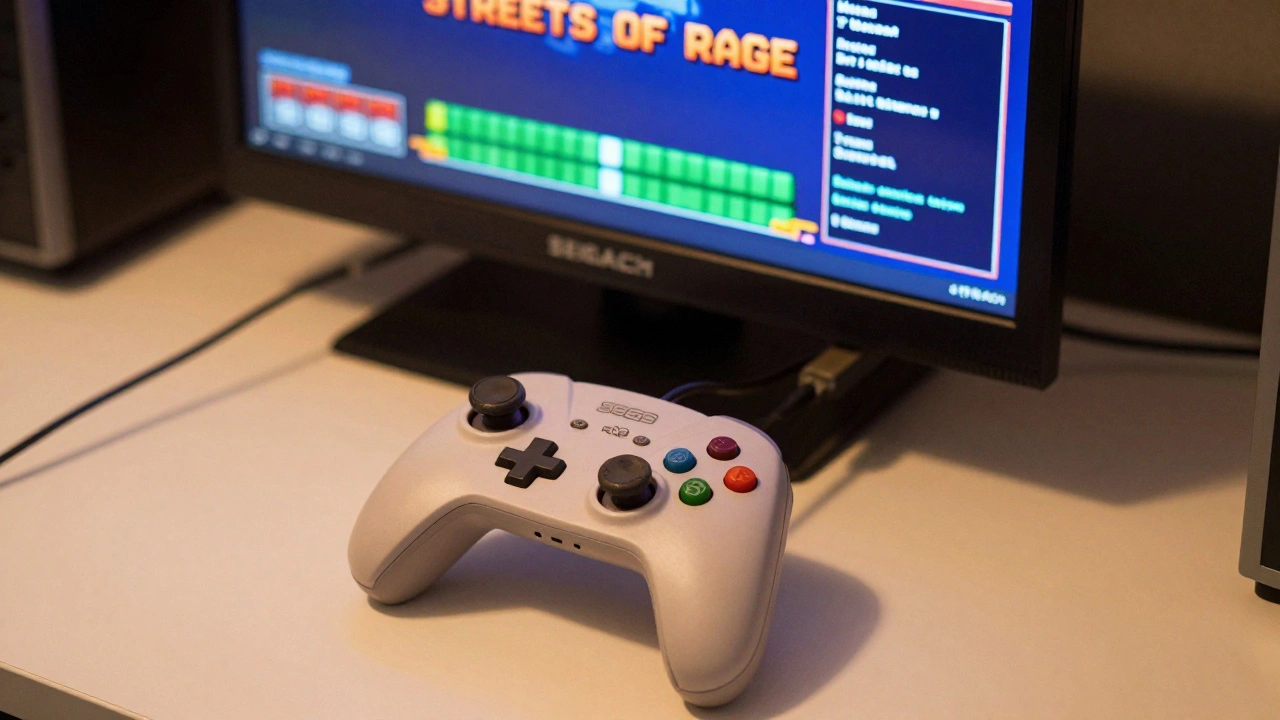
Playing Sega Genesis games today feels different than it did in the '90s. Back then, you had to beat levels the hard way-no second chances, no quick saves, and no skipping past that annoying boss fight. Now, with modern emulators, you can pause anytime, save your progress, tweak graphics, and even rewind mistakes. But not all emulators are built the same. If you want the best experience with reliable save states, smooth performance, and full game compatibility, you need the right tool. Here’s what actually works in 2026.
What Makes a Good Genesis Emulator?
A great Genesis emulator doesn’t just run games. It lets you control them like you’re holding the original console. The big three features you should look for are:
- Save states - These let you save your game at any moment, not just at designated save points. This is huge for games like Streets of Rage 2 or Shinobi III where you might lose progress after a single death.
- Controller support - Whether you’re using a USB Sega controller on PC or a Bluetooth controller on your phone, input lag ruins the experience. Look for emulators that map inputs cleanly.
- Game compatibility - Some emulators glitch out on certain games. You don’t want your favorite Phantasy Star IV save to corrupt because the emulator misreads the cartridge data.
Accuracy matters too. Some emulators add flashy filters or speed boosts, but if the sound is off or the physics feel wrong, you’re not playing the real Genesis-you’re playing a watered-down version.
Best Overall: RetroArch with Genesis Plus GX
If you want one emulator that works on Windows, Mac, Linux, Android, and iOS, RetroArch is a free, open-source frontend that supports hundreds of console cores, including the Genesis Plus GX core for Sega Genesis. It’s not the easiest to set up, but once configured, it’s the most powerful option available.
Genesis Plus GX is the core that powers RetroArch’s Genesis emulation. It’s known for near-perfect hardware accuracy, especially in sound reproduction and sprite rendering. You’ll get perfect timing on music, accurate palette handling, and full support for Sega CD and 32X expansions. Save states? Yes. Fast-forward? Yes. Shader filters? Yes. Even rewind functionality if you enable it.
The downside? The interface is cluttered. New users get overwhelmed by the menus, the core downloads, and the configuration files. But if you’re willing to spend 20 minutes reading a setup guide, you’ll have the most flexible emulator on the market. In 2026, it’s still the top pick for users who want one tool to handle every retro console they own.
Best for Windows PC: Kega Fusion
For Windows users who want simplicity without sacrificing performance, Kega Fusion is a standalone emulator that’s been the gold standard since the early 2000s. It’s lightweight, runs on almost any PC, and supports Genesis, Mega Drive, 32X, Sega CD, Game Gear, and Master System-all in one package.
Kega Fusion’s interface is clean. You drag and drop your ROMs, pick your resolution, adjust the audio buffer, and you’re playing. Save states are built-in and work flawlessly. Controller mapping is intuitive, and it even supports memory card saves for games that use them.
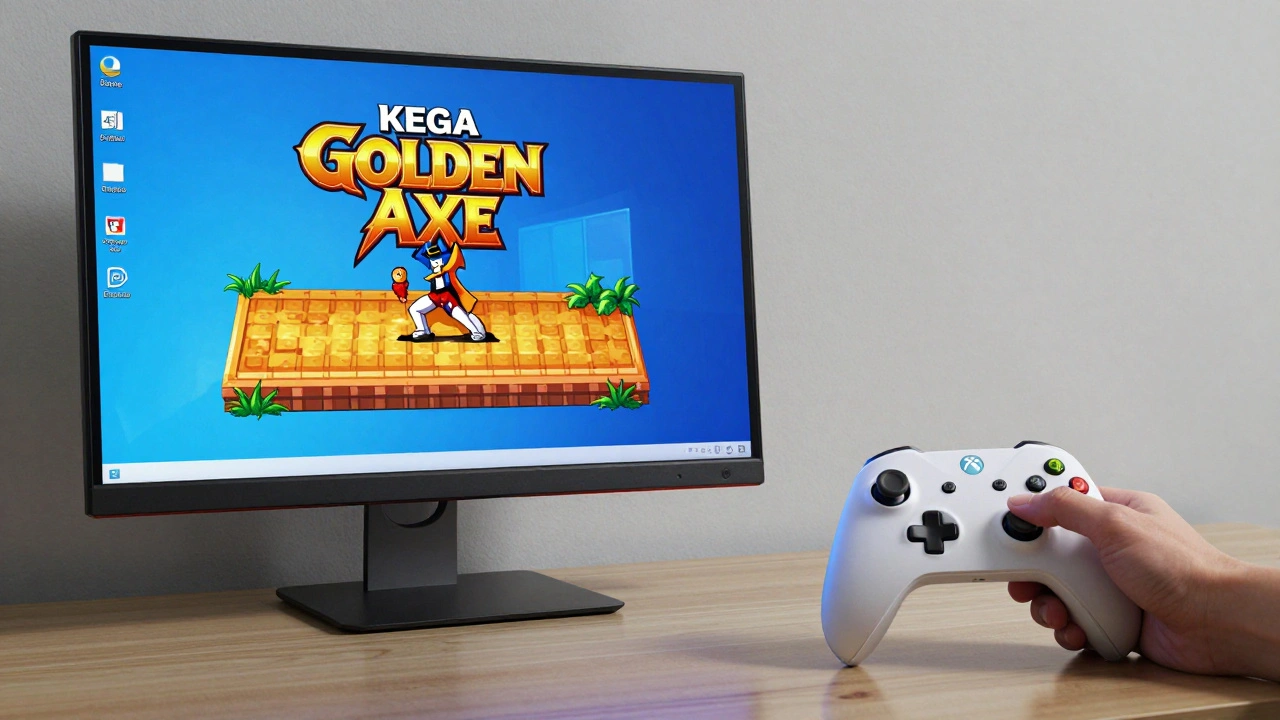
Why do retro experts still call it "the best Sega Genesis emulator of all time"? Because it doesn’t overcomplicate things. No shaders. No plugins. No bloat. Just pure, accurate emulation. It’s the emulator you install and forget about-until you’re playing Golden Axe at 4K resolution on your 2026 monitor.
Best Balanced Choice: Gens/Gens+GS
Gens is a legendary emulator that dominated the Windows scene in the late '90s and early 2000s. It’s been updated over the years, and the fork Gens/Gens+GS is the modern version that adds graphical filters, 7z archive support, and a cleaner interface.
Gens/Gens+GS strikes a perfect middle ground. It’s more accurate than Kega Fusion in some areas, especially with sprite rendering and timing. Sound quality is better than the original Gens, and it handles almost every Genesis game without glitches. Save states? Built-in. Cheat codes? Supported. Frame skipping? Yes.
It’s not as easy to set up as Kega Fusion, but it’s far more user-friendly than RetroArch. If you want something powerful without needing a PhD in emulation, this is your pick.
Best for Accuracy: Regen
For purists who care about every cycle of the 68000 CPU and every pulse of the YM2612 sound chip, Regen is a highly accurate, no-frills Genesis emulator designed for hardware fidelity. It doesn’t have flashy filters or shader support. It doesn’t even have a fancy UI. But if you play Shinobi III and want the exact same timing, lag, and sound as the original cartridge, Regen is unmatched.
It supports Genesis, Mega Drive, Game Gear, and Master System. To get the best sound, enable the "SuperHQ" option under Sound settings. This boosts audio quality to match the original hardware’s output. The catch? It’s demanding. You need a decent CPU to run it smoothly, and it’s only available for Windows and Linux.
Regen isn’t for everyone. But if you’re the kind of person who notices that Streets of Rage 2’s title screen music plays 0.3 seconds too slow on another emulator-you’ll love this.
Best for Android: MD.emu
Android users have a few options, but MD.emu is the top choice for power users in 2026. It’s free, regularly updated, and supports Genesis, Mega Drive, Game Gear, and Master System. The interface is clean, and save states are easy to access via the on-screen menu.
MD.emu handles multi-touch controls well, and you can map Bluetooth controllers like the Xbox Wireless Controller or DualShock 4 with no lag. It supports save states, cheat codes, and even custom shaders to make games look sharper on modern phones.
It’s not perfect. Some games with complex audio (like Contra III) have minor glitches. But overall, it’s the most reliable Genesis emulator on Android. If you’re serious about playing on your phone, this is the one to install.

Best for iOS: Delta Emulator
On iOS, you can’t just download any emulator. Apple’s restrictions mean only a few apps make it through. Delta Emulator is the most popular and beginner-friendly option for iPhone and iPad users. It supports Genesis, NES, SNES, Game Boy, and more-all in one app.
Setup is dead simple. Just sync your ROMs via iCloud or a computer, and Delta automatically detects them. Save states are one-tap. The interface is polished, and controller support works flawlessly with MFi controllers. It’s not the most accurate emulator out there-some sound effects are slightly off-but for casual play, it’s perfect.
If you want multi-console support on iOS, go with Provenance XL. It’s more complex to set up, but it gives you more control over video filters and save locations. Delta is for playing. Provenance XL is for tinkering.
What About ClassicBoyGold?
ClassicBoyGold is a popular Android app that covers NES, SNES, Game Boy, and Sega systems. It’s free to download, but to unlock save states, you need to pay $5.99. That’s not a dealbreaker-many users do it-but it’s worth knowing upfront.
It works fine. The interface is clean, and the Genesis emulation is decent. But compared to MD.emu, it’s less reliable with sound and timing. If you’re already paying for it, fine. But if you’re starting fresh, MD.emu gives you more for free.
Final Advice: Pick Based on Your Needs
There’s no single "best" emulator. It depends on what you want:
- Multi-platform? Go with RetroArch. It’s the Swiss Army knife of emulation.
- Windows PC? Kega Fusion. Simple, fast, and reliable.
- Want balance? Gens/Gens+GS. Accurate, feature-rich, and not overwhelming.
- Purist? Regen. If you care about every byte of original hardware, this is it.
- Android? MD.emu. Best combination of accuracy and usability.
- iOS? Delta. Perfect for beginners. Provenance XL if you want more control.
Save states changed everything. No more restarting Golden Axe from level one after a single mistake. No more memorizing passwords. Just play. And with these emulators, you’re not just playing a game-you’re reliving it, exactly how you remember it.
Do Genesis emulators support save states?
Yes, all major Genesis emulators from 2026 support save states. This includes RetroArch, Kega Fusion, Gens/Gens+GS, Regen, MD.emu, Delta, and Provenance. Save states let you save your progress at any moment, not just at in-game save points. This is especially useful for games like Streets of Rage 2 or Shinobi III that don’t have traditional save functionality.
Are Genesis emulators legal?
The emulators themselves are legal-they’re just software that mimics hardware. What’s not legal is downloading ROMs of games you don’t own. If you own a physical Sega Genesis cartridge, making a backup copy for personal use is generally considered fair use in many countries. But distributing or downloading ROMs from the internet is against copyright law.
Can I use a real Sega controller with these emulators?
Yes, you can. On PC, USB-to-Genesis adapters let you plug in original controllers. RetroArch and Kega Fusion both recognize them out of the box. On mobile, Bluetooth controllers like the Xbox Wireless Controller or DualShock 4 work perfectly with MD.emu and Delta. Some emulators even let you map the original Genesis button layout to modern controllers.
Which emulator has the best sound quality?
Regen offers the most accurate sound reproduction by letting you enable "SuperHQ" mode, which closely matches the original YM2612 chip’s output. RetroArch with Genesis Plus GX is also excellent, especially with proper audio buffering. Kega Fusion and Gens/Gens+GS are good, but their sound engines aren’t as precise. For most users, the difference is subtle, but purists will notice it.
Do I need a powerful computer to run these emulators?
No. Even the most accurate emulators like Regen or RetroArch run fine on modern PCs, laptops, or even older smartphones. Genesis emulation is lightweight-it doesn’t need a gaming rig. A 5-year-old laptop or a mid-range Android phone can run these emulators at full speed. The only exception is if you’re using heavy shaders or running at 4K resolution, which can strain older hardware.