Remember the smell of cartridge dust and the specific hum of a CRT television? For many of us, those sensory details are tied to childhood memories that modern high-definition graphics just can't replicate. But getting those old games running on a modern PC often involves a headache-inducing maze of BIOS files, controller mappings, and frontend configurations. You end up spending more time tweaking .ini files than actually playing Super Mario World.
This is where Batocera Linux changes the game. It isn't just an operating system; it's a complete ecosystem designed to turn almost any hardware into a dedicated retro video game console. At its heart lies EmulationStation, a sleek, user-friendly frontend that organizes your library by system, box art, and genre. Together, they offer a "turnkey" experience-plug in, boot up, and play. No command lines required.
What Exactly Is Batocera Linux?
Batocera Linux is a free, open-source distribution based on Arch Linux, specifically tailored for retro gaming. Unlike general-purpose distributions like Ubuntu or Windows, Batocera strips away everything you don't need. There's no web browser cluttering the RAM, no background updates interrupting your session, and no bloatware slowing down your frame rates.
The core philosophy here is simplicity through automation. When you install Batocera, it automatically configures over 90 emulators, from the Atari 2600 to the PlayStation 3 and Nintendo Switch. It handles the heavy lifting of mapping controllers, organizing ROMs, and downloading metadata (like box art and release dates) via community databases such as ScreenScraper or TheGamesDB.
You might be wondering, "Is this legal?" Batocera itself is completely legal software. However, the legality of the ROMs (game files) depends on your jurisdiction and whether you own the original copies. Batocera doesn't come with games included, so you'll need to provide your own backups.
The Role of EmulationStation
If Batocera is the engine, EmulationStation is the dashboard. It’s the interface you see when you turn on your machine. Originally created by Dmitri Smirnov, it has become the gold standard for frontend UI in the emulation scene.
Why do people love it? Because it looks good. Seriously. You can customize themes to look like a classic arcade cabinet, a minimalist media center, or a flashy modern dashboard. More importantly, it’s intuitive. You navigate with a gamepad, not a mouse. You scroll through systems using arrow keys, select a game, and hit 'A' to launch. That’s it.
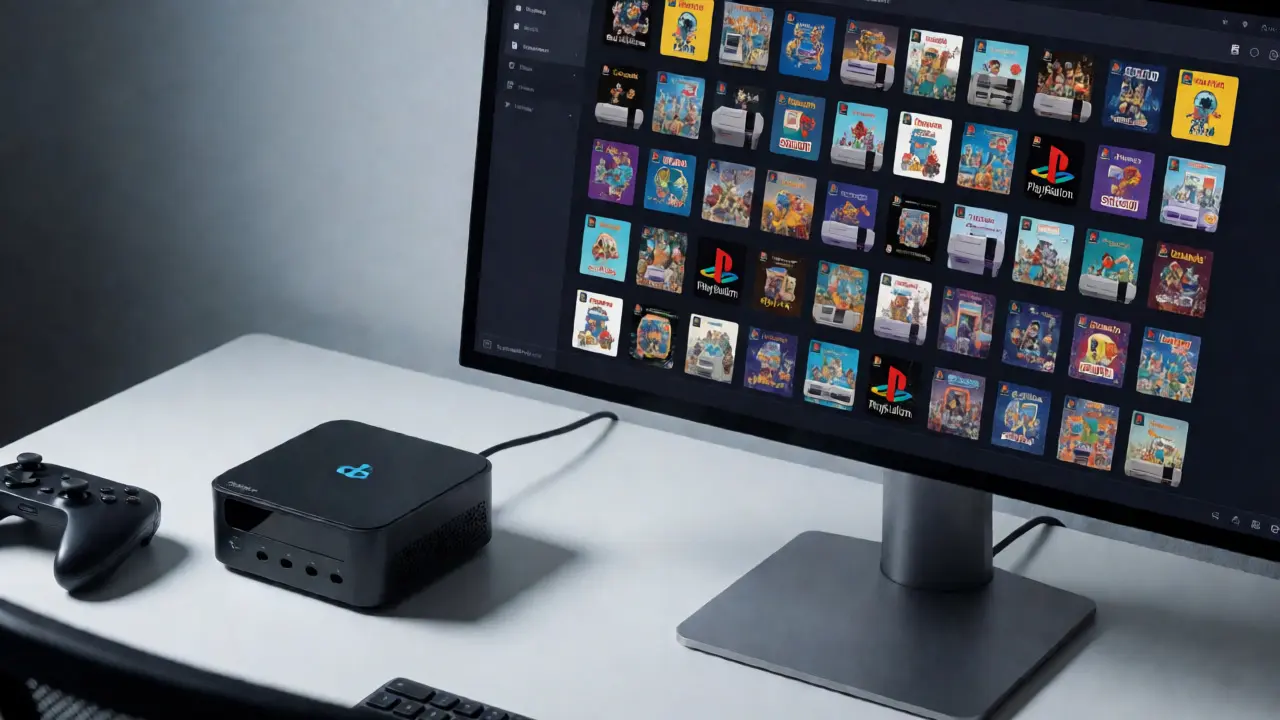
EmulationStation also supports "scraping." This means it connects to online databases to pull in images, descriptions, and ratings for your games. If you dump your entire SNES library onto a hard drive, EmulationStation will automatically fetch the cover art for every single title, making your collection look professional and organized instantly.
Hardware Requirements: What Do You Need?
One of the biggest selling points of Batocera is its flexibility. You don’t need a $1,500 gaming PC. In fact, most users start with much cheaper options. Here’s a breakdown of common setups:
| Device Type | Example Models | Best For | Performance Expectations |
|---|---|---|---|
| Single-Board Computers | Raspberry Pi 4, Odroid N2+ | 8-bit to PS1 era games | Excellent for NES, SNES, Genesis, N64. Struggles with PS2/Switch. |
| Mini PCs | Intel NUC, Beelink S12 Pro | PS2, GameCube, Wii | Great balance of power and size. Handles Dreamcast perfectly. |
| Handhelds | Anbernic RG35XX, Miyoo Mini Plus | Portable retro gaming | Optimized for battery life and small screens. Great for GBA/PSP. |
| Full Desktop PCs | Gaming Laptops, Custom Builds | PS3, Switch, High-Res Textures | Can handle upscaling and demanding titles like God of War III. |
For beginners, a Raspberry Pi 4 is the classic starting point. It costs around $50-$80 depending on availability and accessories. It runs Batocera smoothly for anything up to the Nintendo 64 and PlayStation 1. If you want to play God of War or Metroid Prime, you’ll need something with an x86 processor, like a used Dell Optiplex or a new Intel-based mini PC.
Installation: From Zero to Hero in 15 Minutes
Installing Batocera is surprisingly straightforward. You don’t need to partition your hard drive or worry about dual-booting if you’re testing it out. Here’s the typical workflow:
- Download the Image: Go to the official Batocera website and download the version compatible with your hardware (e.g., `batocera-rpi4-...img.gz`).
- Flash the Drive: Use a tool like Balena Etcher or Rufus to write the image to a USB stick or SD card. Note: This erases all data on the target drive.
- Boot Up: Insert the drive into your device and power it on. Batocera will expand the filesystem to fill the drive on first boot. This takes a few minutes.
- Add Games: Once booted, plug in a USB drive containing your ROMs. Batocera usually auto-detects them. If not, you can copy them to the `/share/roms` directory via network share (SMB) or directly on the storage.
- Update Metadata: Press Start -> Game Settings -> Update Game List & Gamelist. This triggers the scraper to download box arts and descriptions.
Pro Tip: Always use wired Ethernet for the initial setup. Wi-Fi drivers can sometimes be finicky during the first boot, and scraping thousands of games requires a stable internet connection.
Customization and Themes
Out of the box, Batocera looks clean, but it’s boring. Most enthusiasts spend their first weekend customizing. The theme engine allows you to change fonts, backgrounds, and transition effects. Popular themes include "Pixel," which mimics pixel-art aesthetics, and "Carbon," which offers a dark, modern look.
You can also adjust shader settings. Shaders are post-processing filters that mimic the look of old CRT TVs. They add scanlines, curvature, and color bleed. While purists argue that modern LCDs should display pixels sharply, others swear that shaders make Sonic the Hedgehog feel authentic. Batocera lets you toggle these per-system or globally. Try enabling the "CRT-Royale" shader for a true nostalgic effect, but be warned-it’s GPU-intensive.
Troubleshooting Common Issues
Even turnkey systems have hiccups. Here are the most frequent complaints from the community:
- Controller Not Recognized: Ensure your controller is plugged in before booting. If it still fails, go to Input Settings and re-map buttons manually. Some Bluetooth controllers require pairing mode activation before detection.
- Black Screen on Boot: Often caused by resolution mismatches. Hold Shift during boot to reset video settings to default.
- Slow Scraping: If metadata downloads are slow, check your DNS settings. Changing to Cloudflare (1.1.1.1) in Network Settings often speeds up connections to scraping servers.
- ROMs Not Showing: Check file extensions. Batocera expects specific formats (e.g., `.zip`, `.7z`, `.nes`, `.sfc`). Also, ensure your folder structure matches the expected layout (e.g., `/roms/snes/`).
Why Choose Batocera Over Recalbox or Lakka?
The market has other players. Recalbox is similar but tends to update less frequently and focuses more on stability than bleeding-edge features. Lakka uses RetroArch cores directly and feels more like a configuration menu than a polished OS. Batocera sits in the sweet spot: it updates regularly with new emulator versions, includes built-in support for newer systems like PS3 and Switch, and maintains a user-friendly interface without sacrificing power.
Additionally, Batocera has a strong community presence on Discord and Reddit. If you run into a niche issue with a specific BIOS file or controller driver, chances are someone else has already solved it and posted the fix in the forums.
Do I need a powerful computer to run Batocera?
No. Batocera is highly optimized. A Raspberry Pi 4 (4GB RAM) can handle up to Nintendo 64 and PlayStation 1 games at full speed. For PlayStation 2, GameCube, and Wii, you need a more powerful x86 mini PC with a decent integrated GPU or discrete graphics.
Where do I get games for Batocera?
You must supply your own ROMs. Legally, this usually means dumping games from cartridges or discs you own. Batocera does not include copyrighted games. You place these files in the appropriate system folders within the `/share/roms` directory.
Can I save my progress across different devices?
Not natively between different physical machines unless you sync your save states manually. Save files are stored locally on the installation drive. To move saves, you would need to copy the `/share/saves` directory to another device running Batocera.
Is Batocera good for multiplayer?
Yes, absolutely. Most retro consoles supported by Batocera had local multiplayer capabilities. You can connect multiple USB controllers or pair Bluetooth controllers. The system automatically detects connected pads and assigns player numbers accordingly.
How do I update Batocera?
Updates are handled within the system menu under System Settings -> Update. You can choose to update via the internet or flash a new image. Major version updates may require backing up your ROMs and saves, though minor updates are generally safe and seamless.